Tutorial
Turning landscape footage into vertical video without losing the subject
How to choose between cropping, reframing, redesigning and extending a shot when adapting landscape footage to vertical delivery.
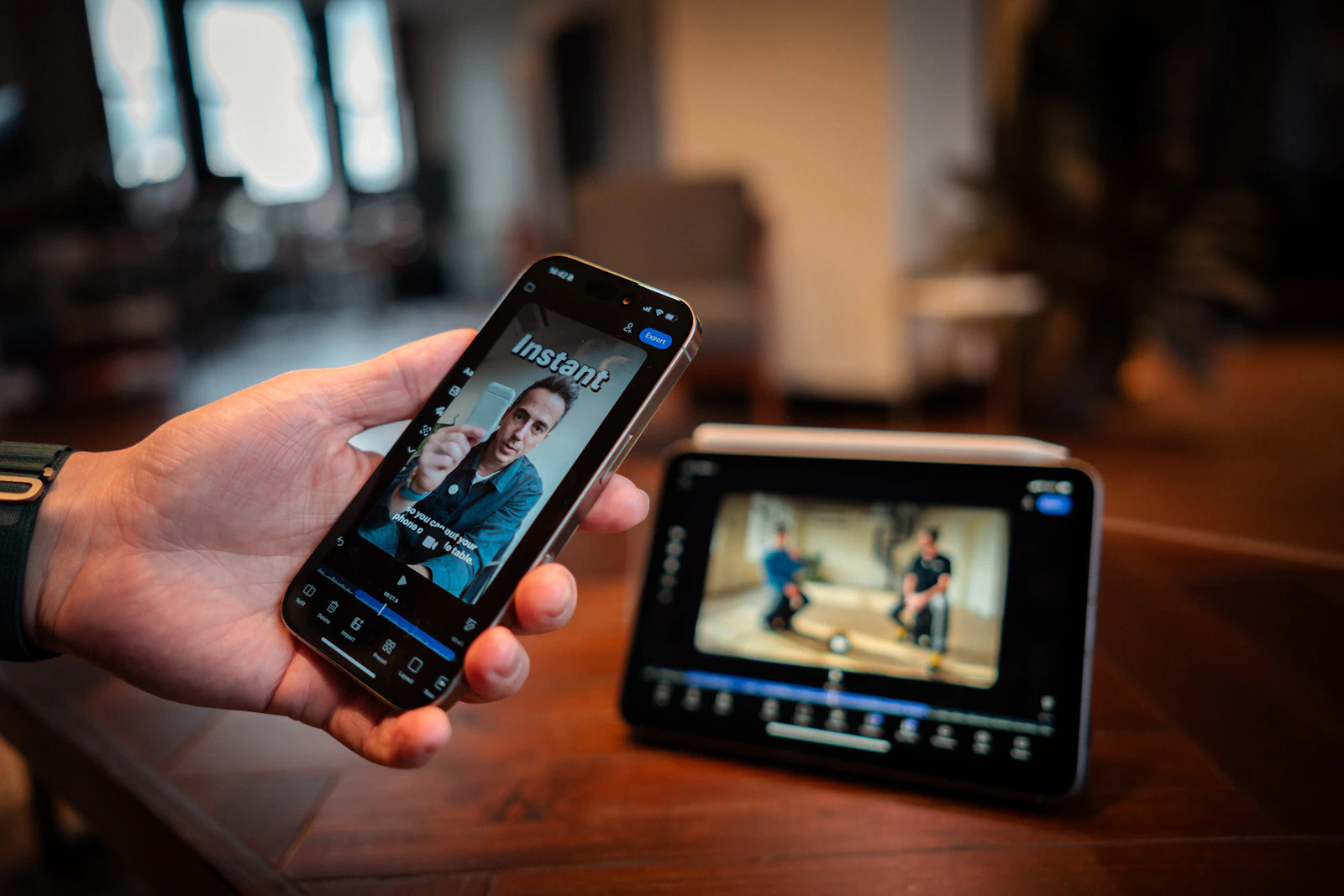
Turning landscape footage into vertical video is an editorial decision as well as a change of dimensions. Keep the important action visible, redesign text for the new composition and judge the resulting movement. When the source cannot support the new frame, choose a different treatment.
Identify what must stay in the vertical frame
Draw the target frame over the shot before moving it. Mark the essential subject, any text, the action's destination and relevant space around it. A face can remain visible while the product being held disappears; keeping the largest object centred is not always the right editorial choice.
Check the entire shot and the cut into the next one. A crop that works for the opening can fail when the subject reaches sideways or a second person enters. If the viewer needs both sides at once, the issue may be composition rather than tracking.
Use reframing as a first pass
For a shot that fits the new format with a moving crop, create a separate delivery sequence. Adobe's Auto Reframe workflow can produce a reframed sequence and keyframes, but the result still needs review. Choose the subject deliberately and correct moments where the crop follows the wrong action.
Watch the path as movement in its own right. A crop that accelerates abruptly can make a calm scene feel restless. If the original camera and the crop both move, inspect whether they combine into an unintended wobble.
Keep the landscape edit intact. A separate vertical sequence makes it easier to compare choices and prevents a fix for one delivery from quietly damaging another.
Redesign graphics instead of squeezing them
Treat titles, captions and end frames as layout elements. A long line designed for landscape may need different line breaks or placement. Do not shrink everything until it technically fits while becoming unreadable on a phone.
For an illustrative two-person demonstration, one option is to alternate closer views with a short overview. Another is a designed stacked composition. The appropriate choice depends on what the viewer must understand, not on a rule that vertical video must always fill every pixel with the original shot.
Confirm the actual placement's interface overlays before positioning essential text. Avoid assuming that one fixed safe area fits every platform, device and viewing mode.
Use extension only when the new picture is acceptable
Generative extension creates content beyond what was captured. That may be useful for a flexible background, but it should not be mistaken for recovering missing factual detail. Review newly created edges, reflections and objects carefully.
If a product or important hand movement lies outside the crop, extending the surroundings may not solve the real problem. Consider a different take, a deliberately designed frame or a newly produced shot. The tool's ability to fill space is separate from the film's need to show the correct action.
Record where generated material has been introduced so the relevant reviewer can assess it. Keep product claims and exact branding tied to approved source material.
Review the vertical version as its own edit
Play the version at a realistic phone size with captions and the intended sound state. Check continuity across cuts: a subject jumping from one side to the other can be distracting even if both individual crops are valid.
Before delivery, verify:
- Essential action remains visible throughout each shot.
- Crop movement feels intentional rather than corrective.
- Graphics are readable and clear of the actual interface.
- Any generated regions have been reviewed.
- The output dimensions and final encode match the placement.
The official Adobe video below is a historical introduction to Auto Reframe, not a promise that its older interface matches your installation. The accompanying documentation provides the more current reference for the sequence workflow.
Sources and visual references
- Add Auto Reframe effect to sequences — Adobe Premiere documentation
Current documented sequence workflow and the need to refine more complex action.
- How to use Auto Reframe in Premiere Pro | Adobe Creative Cloud — Adobe Creative Cloud
Official Adobe introduction to Auto Reframe (2019); use the accompanying documentation for current controls.
Related reading
Cover image
- Cover illustration: Detail .co / Unsplash.
Editorial illustration of the article topic.
- Image licence — Unsplash
Free use, including commercial use, under the Unsplash License.