Tutorial
Fixing logos and packaging text in AI-assisted video
When to replace a logo or packaging panel with a controlled tracked element, and how to decide whether the underlying shot is stable enough.
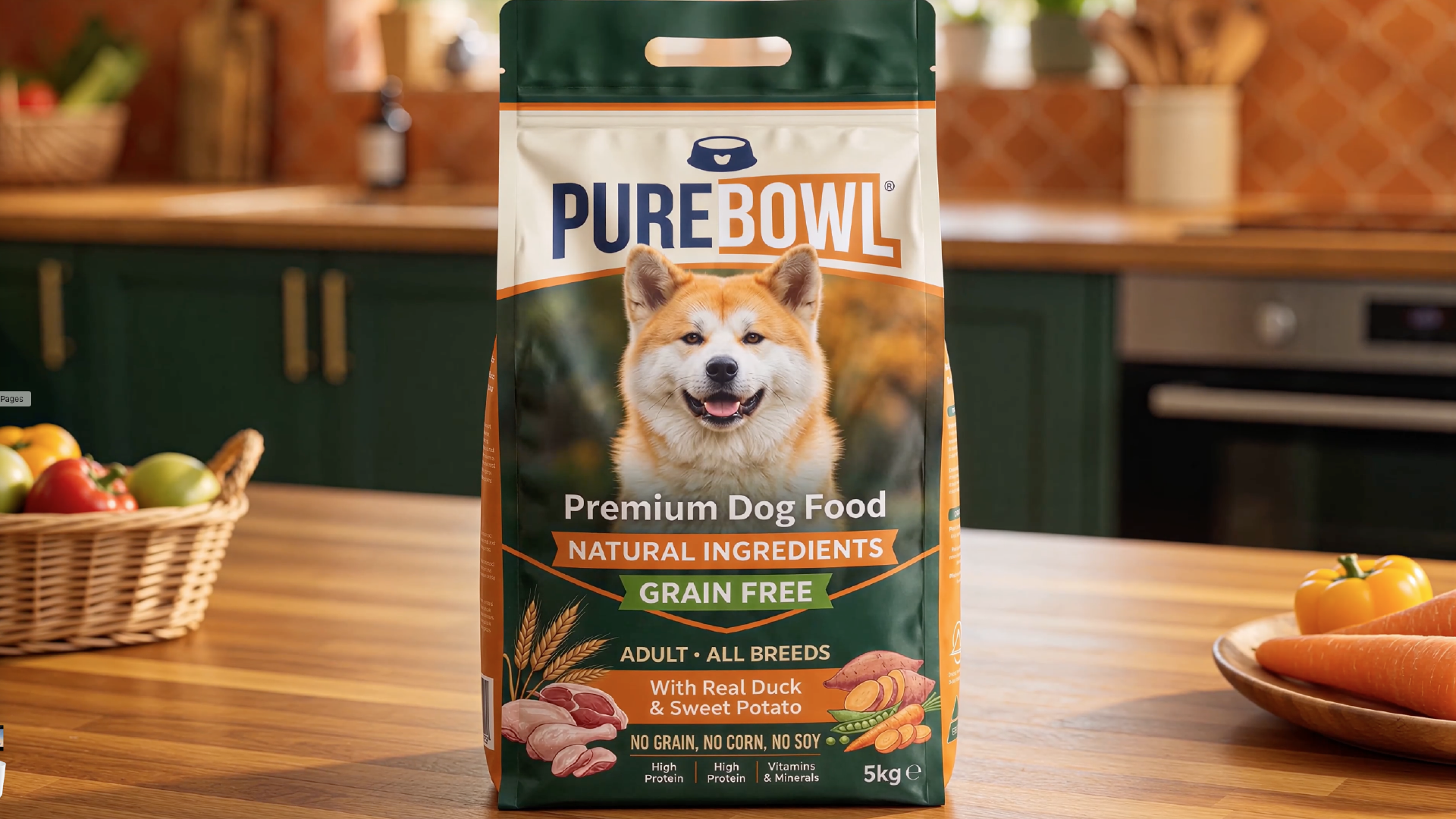
Accurate logos in AI-assisted video often need controlled artwork and compositing rather than another instruction to spell them correctly. First establish that the shot contains a surface you can track. A text repair cannot turn an unstable object into a reliable product demonstration.
Decide whether there is a stable surface to repair
Watch the product through its complete movement. A readable logo replacement needs somewhere coherent to sit. If the carton face bends unpredictably, the panel changes proportions or the object invents a new edge, a simple tracked graphic may not solve the shot.
Separate a damaged printed area from a damaged object. The first may be a compositing task. The second may require a different generation, a shorter edit, a CGI element or a filmed product. Make that choice before spending time refining a track.
Prepare the approved artwork and the replacement area
Use the correct logo, product variant and language. Identify which printed information must remain visible, rather than patching only the largest word and leaving inconsistent small text around it.
Decide how much of the panel to replace. A very small patch can leave an obvious boundary; a larger panel may need more work to retain reflections and surface detail. Keep an untouched copy of the source so you can compare what the replacement changes.
For an illustrative flat carton, a single approved front-panel design is a better starting point than reconstructing different letters in different frames. That does not mean placing a perfectly flat digital sticker over every lighting condition.
Track a plane and verify it before adding the logo
A planar tracker follows image information across a surface. Use it only where the footage supports a credible plane. Put a temporary grid or simple test graphic on the result and look for sliding, perspective errors and jumps.
Adobe documents applying Mocha AE tracking data to a corner-pinned replacement. The linked Boris FX material provides a visual example. Follow the controls for your installed edition: advanced correction tools shown in a Mocha Pro lesson are not automatically available in Mocha AE.
Where a hand or foreground object crosses the panel, arrange the appropriate holdout or mask. A logo that floats over a hand is still wrong even if its track is stable.
Restore the appearance of a printed surface
Match the replacement's apparent sharpness, colour and motion blur to the shot. Preserve or reconstruct relevant shading so the panel belongs to the object. Compare dark and bright moments, not just the frame where the artwork looks strongest.
If the shot contains glossy reflections, decide which should pass over the printed design and which detail belongs beneath it. Avoid making every character equally dark and sharp while the surrounding product moves out of focus.
Check the edges of the patch over its entire life. A soft edge that blends in one frame may reveal a halo against a different background. If the treatment only works with a very small preview, inspect whether it will survive the intended crop or close-up.
Approve the repaired clip as a complete image
Compare the result with the approved pack artwork and watch it at delivery size. Ask someone unfamiliar with the repair to look for visual distractions. Also inspect the product shape and movement so a successful logo replacement does not distract from a separate defect.
Use this checklist:
1. Correct product, language and artwork revision.
2. Stable placement and perspective throughout the shot.
3. Correct overlap with hands and foreground elements.
4. Plausible light, blur and surface texture.
5. Readable text after the final export.
If essential details cannot be made reliable, replace the shot. A compositing repair is valuable when it provides controlled accuracy; it should not become a reason to approve an incoherent product image.
Sources and visual references
- Screen Replacement (Screen Tracking) in After Effects — Boris FX / Marco Sebastiano Alessi
Illustrated screen-replacement workflow; adapt the planar principle only to a suitable packaging surface.
- Tracking and stabilizing motion — Adobe After Effects documentation
Adobe reference for Mocha AE and transferring corner-pin or transform data.
- Getting Started with Mocha: Simple Screen Inserts — Boris FX / Ben Brownlee
An older Mocha Pro demonstration; interface and advanced features differ from Mocha AE.
Related reading
Cover image
- Cover: PureBowl — DELA Media.
From the DELA Media portfolio.